Got handed the derby? Start here.
Maybe the last derby chair moved away. Maybe you missed one meeting and came back with a new job. However it happened, there's a race on the calendar, a box of cars in your garage and a group chat full of parents asking questions you can't answer yet. That's fine. You don't need to know anything about heat charts or lane rotation to run a good derby. You need an evening, a laptop and this page.
Free for up to 20 racers. Runs in Chrome or Edge on the laptop you already have.
First, what you actually need
A laptop with Chrome or Edge. A list of your racers, even if right now it's a blurry photo of a sign-up sheet. About twenty minutes. And on race night, a projector or TV if the building has one, though you can run the whole thing without it.
You don't need a track timer. A person standing at the finish line, watching the cars and tapping the order they crossed, is how a lot of derbies are run, and it works. (If you do have a timer, there's a section near the end about trying it with the app.)
You also don't have to understand how the heats get built or how the points work. The app handles that. If you're curious later, the heat chart and scoring pages explain it in plain English. Tonight, just follow along.
1. Make an account and answer three questions
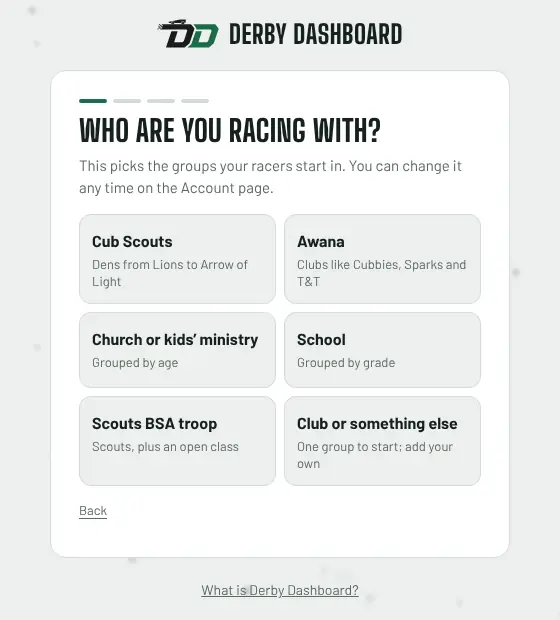
Sign up with your email and a password. The first thing the app asks is who you're racing with. If you pick Cub Scouts, your racers start out sorted into dens, Lions through Arrow of Light. Awana starts you with clubs. Church, school and troop each get their own groups. None of this is permanent. You can rename groups, add one or delete one later.
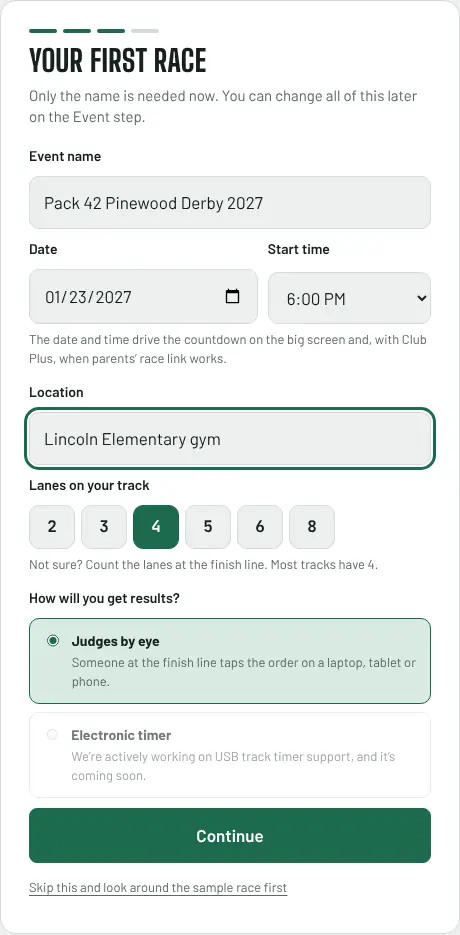
Then name your group (Pack 42, say) and your race: what it's called, the date, the start time, where it is and how many lanes the track has. Don't know the lane count? Count the lanes at the finish line. Most tracks have four. If you don't know the rest yet either, that's okay. Only the name is required.
2. Look around the Event page
Across the top of the app are the steps, in the order race night actually happens: Event, Racers, Races, Day plan, Race, Standings, Awards. You can jump around, but going left to right the first time keeps things simple.
The Event page holds the basics: the date, when the doors open, when racing starts and where. Below that are the track and the rules your cars get inspected against. If your pack tweaks the standard rules, change them on the Races step and press Save these rules; next year they're one tap away. On the right, a "Getting ready" list checks itself off as you work. You don't have to come back here to see it: the Getting ready button in the bar at the top of every step opens the same list.
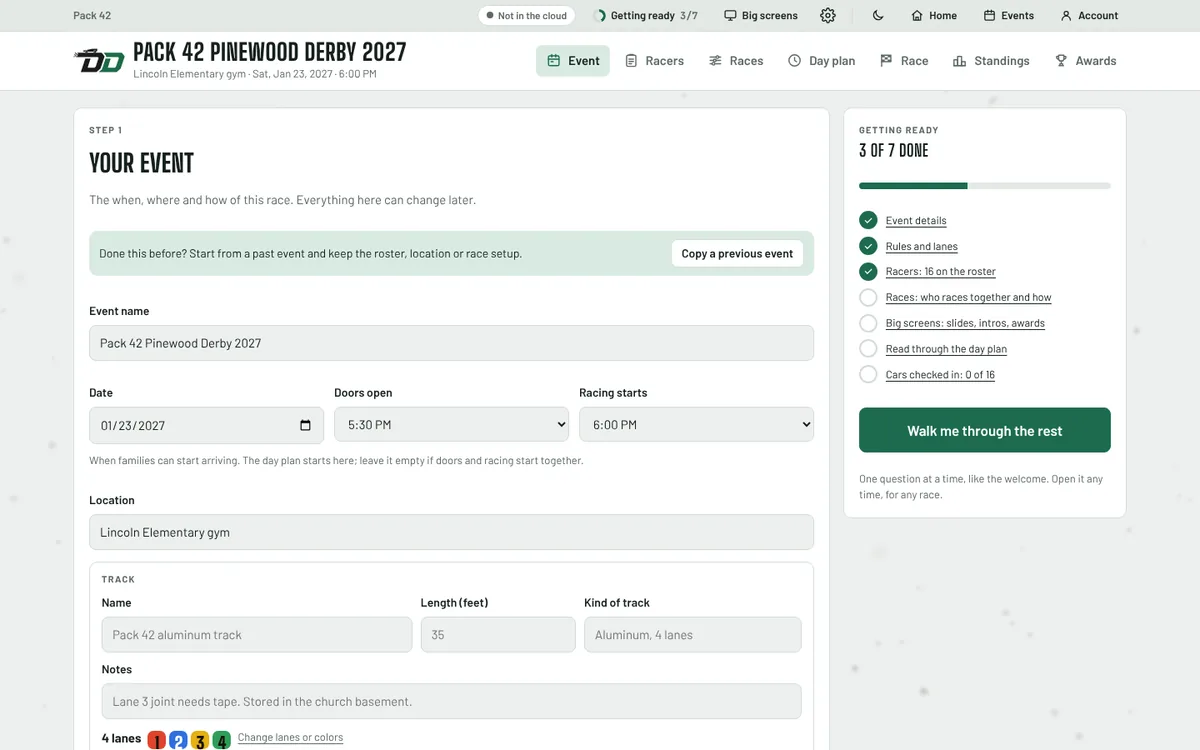
If that list makes your stomach drop a little, press Walk me through the rest. It asks one question at a time, like the welcome did. You can stop halfway through and pick it up tomorrow.
3. Get your racers in
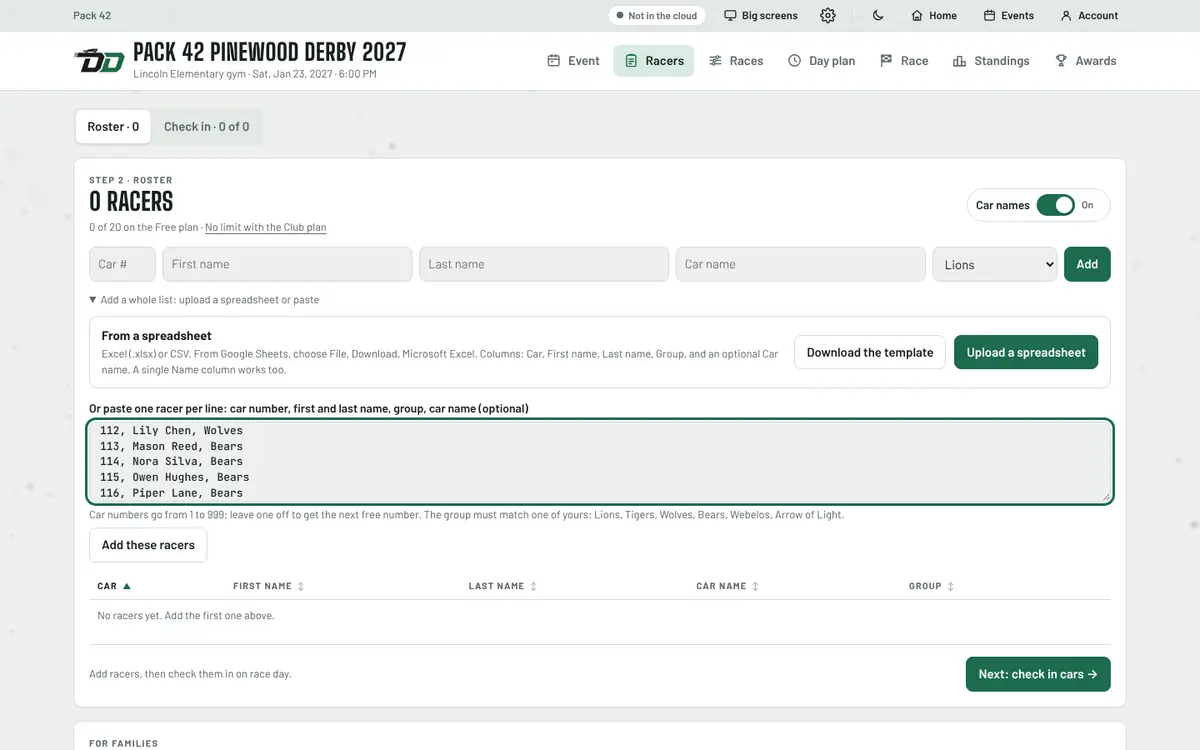
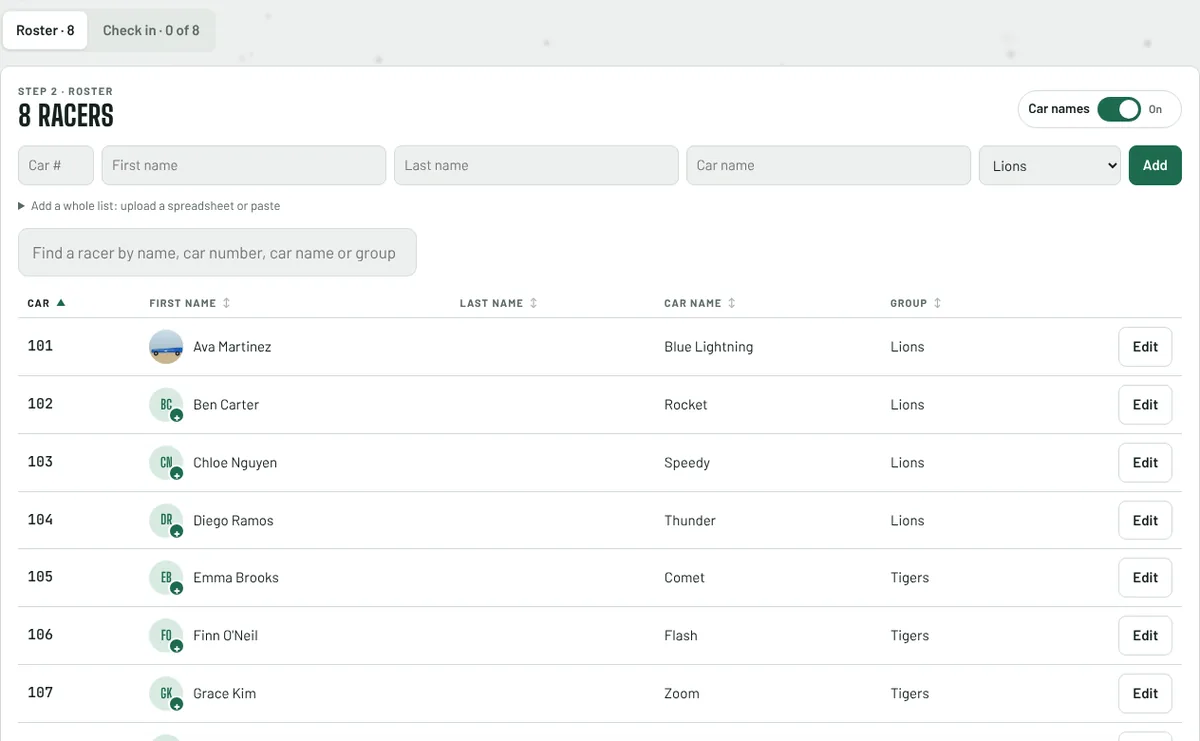
Open Racers. You can type kids in one at a time, but if you have a list anywhere, paste it. One racer per line, with a car number, a name and a group, like 101, Ava Martinez, Lions. Press Add these racers and you're done. No car number? Leave it off and the app picks the next free one.
If your list lives in a spreadsheet, download the template, copy your columns in, and upload it. When a line has a problem (a typo in the den name is the usual one), that line stays in the box with a note about what to fix, and everyone else goes in.
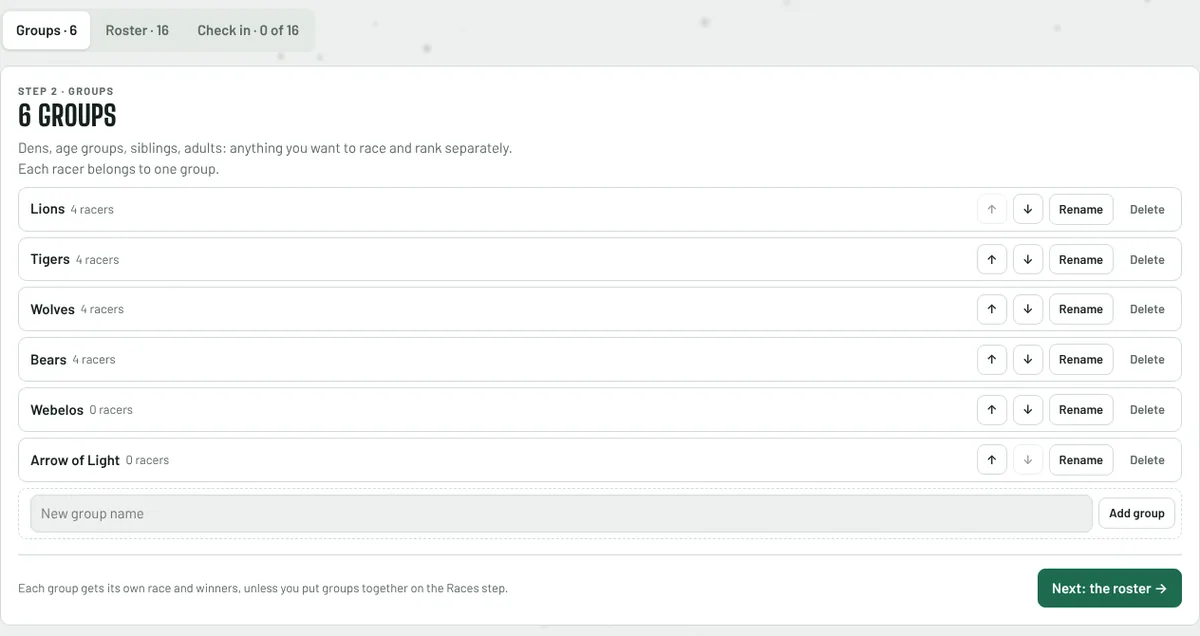
Your groups have their own tab on the Racers step, the first one, next to Roster and Check in. Rename a den, move it up or down, or add one for siblings or adults if they're racing. Each group gets its own race and its own winners, so set them up the way you want trophies handed out. The setup walkthrough has the same list on its "Who's racing?" question, if you'd rather do it there.
Skip the typing: let families sign up
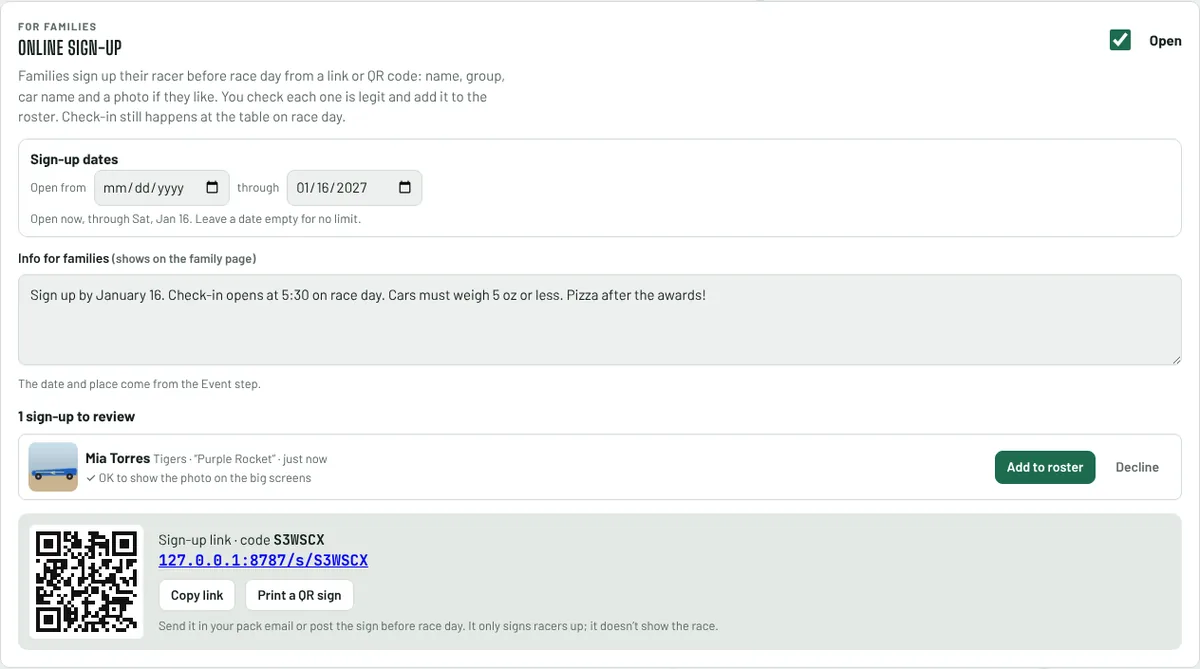
If chasing down names over text is the part you dread, let the families do it. With the Club Plus plan, turn on Online sign-up (on the Racers step, or in Settings under Roster). You get a link, a short code and a QR code. Drop the link in the pack email, or press Print a QR sign and tape it up at the next den meeting.
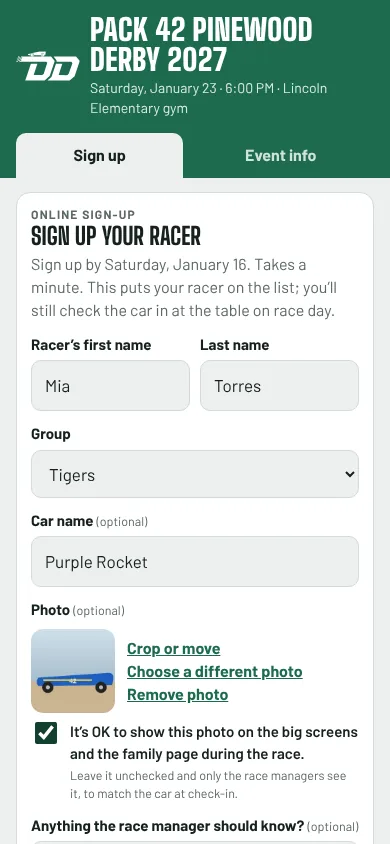
Parents fill in their kid's name, pick the den and add a car name and a photo if they want to. There's a checkbox for whether the photo can go on the big screen. If they leave it unticked, only you and your race managers see the photo, which still helps when you're matching cars at the check-in table.
Nobody lands on your roster by surprise. Each sign-up waits for you on the Racers step, and you press Add to roster or Decline. Set the dates sign-up is open, add a note for families (deadline, weight limit, "pizza after the awards"), and it closes on its own when the date passes, or when you start racing.
Online sign-up doesn't replace check-in. Cars still go across the inspection table on race day. It just means that when they do, the names are already there.
Add photos (kids love this part)
Every racer on the roster has a small circle with their initials and a little + on it. Tap it, pick a photo of the kid or the car, and drag and zoom until it looks right. That's it. Photos work on every plan, including Free.
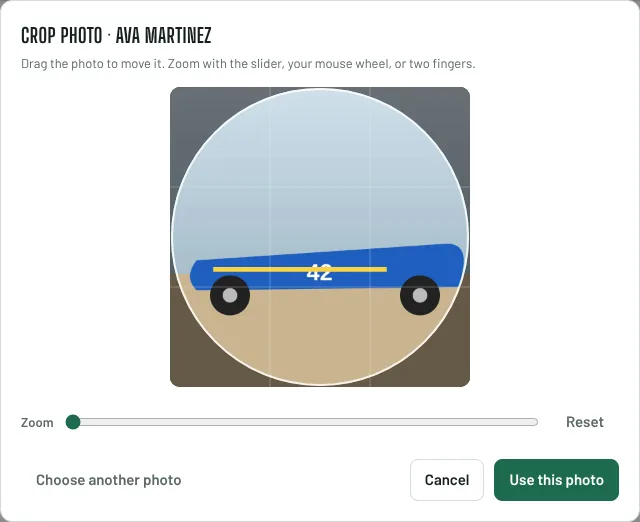
You can do it weeks ahead, or on race day at the check-in table as each car passes inspection. The photo then shows up next to the racer's name in the heat, in the group introductions on the big screen, and when they're called up at the awards. Seeing their own car up on the wall is the thing the kids talk about on the drive home.
4. Check cars in on race day
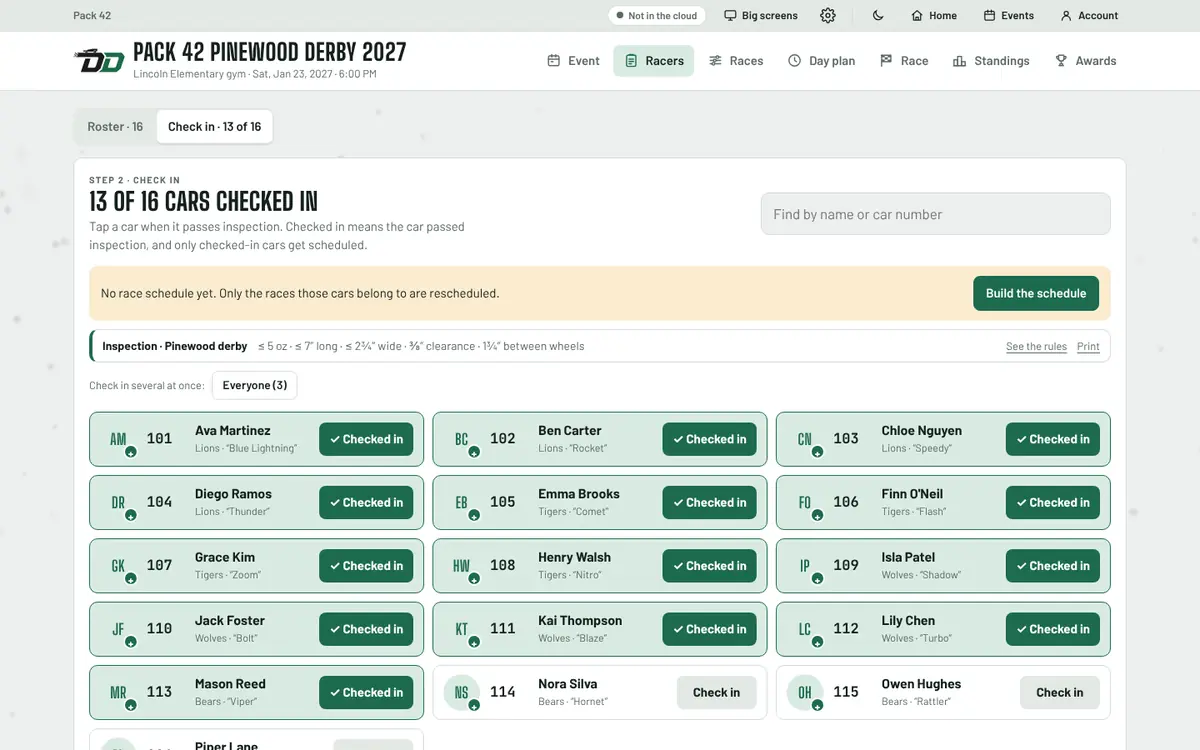
As each car passes inspection, tap Check in on its card. Checked in means it passed. Only checked-in cars get put in heats, so the kid who's home with a fever doesn't leave an empty lane in every one of their races. Your rule set's car specs sit at the top of the page as a reminder for whoever is running the scale.
If you inspected a whole den before anyone opened the laptop, check them all in at once with the buttons above the cards. And when a family runs in fifteen minutes late (one will), check the car in and press Update the schedule. Only that car's race gets rebuilt. Nobody else's heats change.
On the Club plan you can hand the check-in table to another parent without making them an account: they open a link (or scan its QR code) on their phone and type the PIN shown on your Event page.
5. Decide who races who
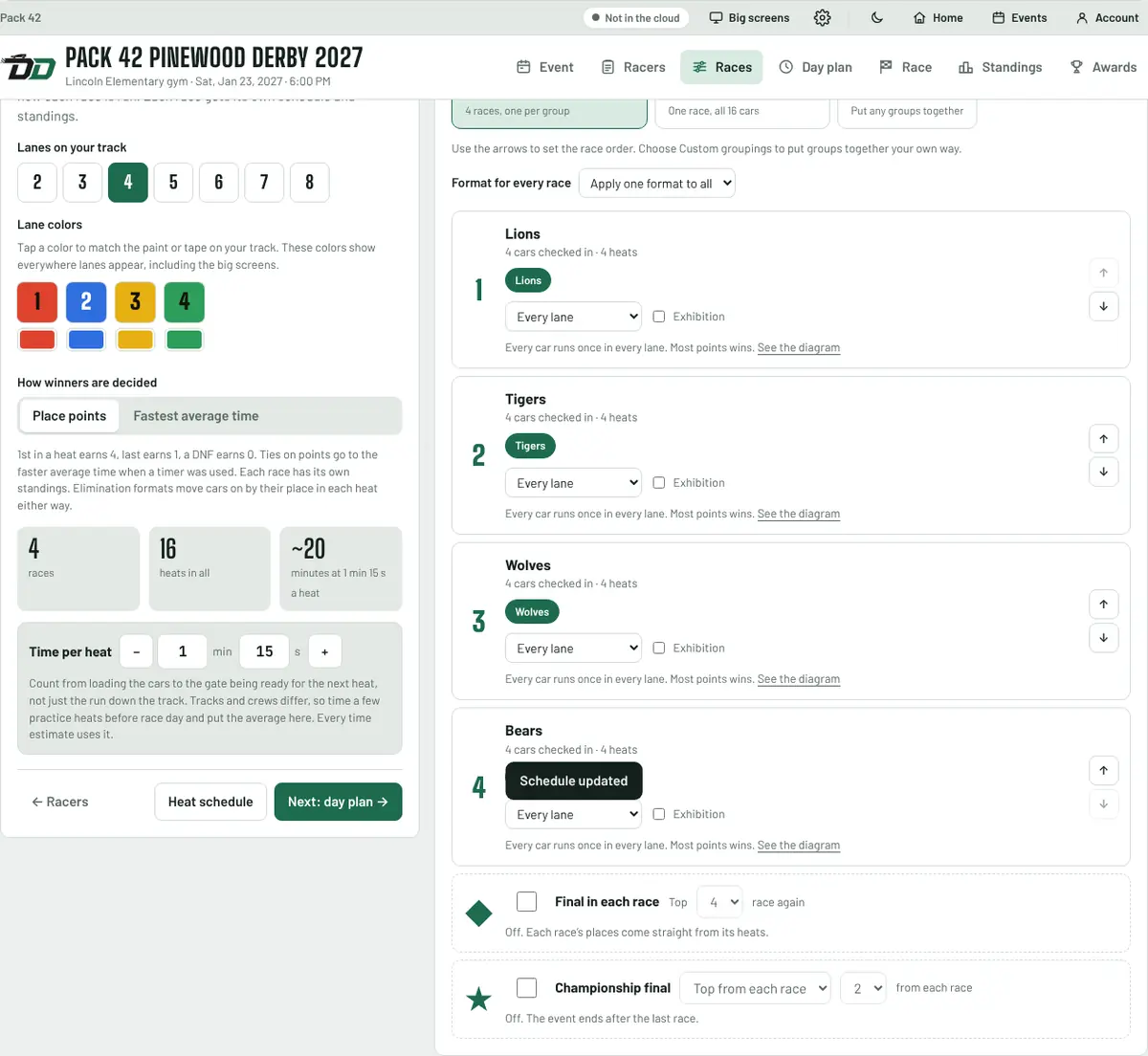
On the Races step, most packs choose Each group races on its own. Lions race Lions, Tigers race Tigers, and every den gets its own winners. That's the default. If your group is small, Everyone races together is fine too, and custom groupings let you put, say, Webelos and Arrow of Light in the same race.
The format is already set so every car runs once in every lane. That's the fairest way to race, and it's the easiest answer when a parent asks why their kid lost. You can change it, and the format guide on that page shows how many heats each option takes with your real cars. When it looks right, the heats build themselves.
6. Read the day plan once
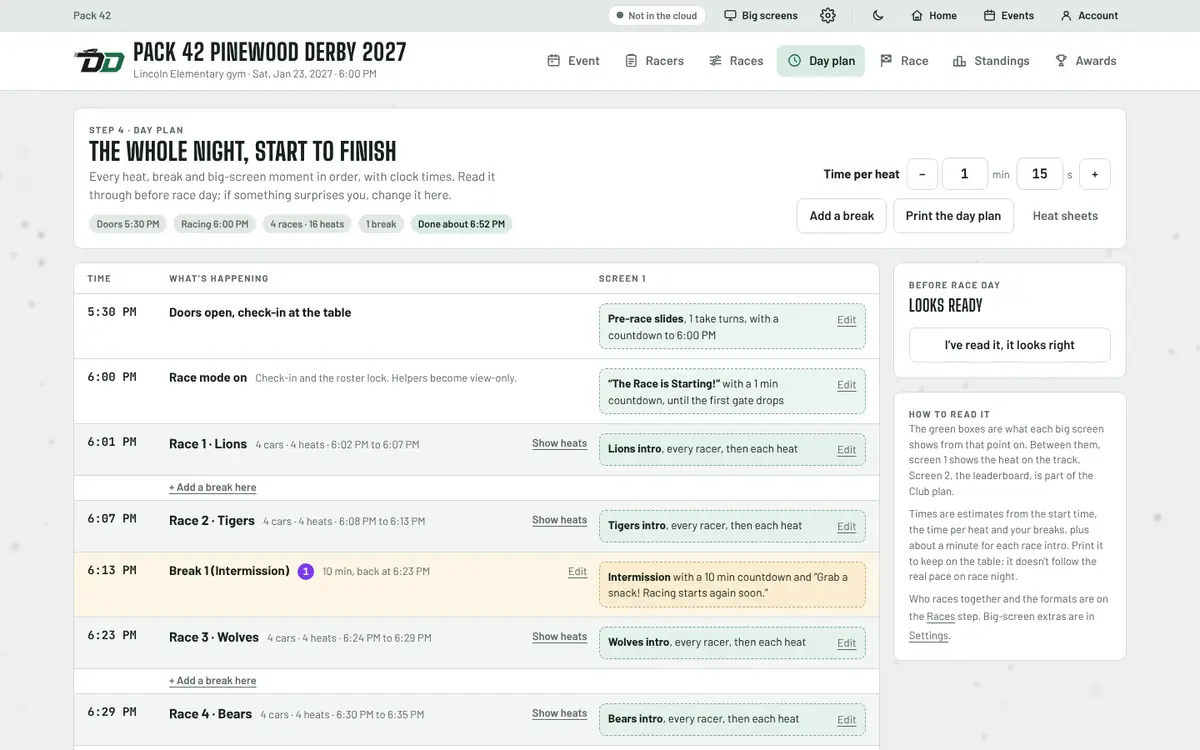
The Day plan is the whole night on one page, with real clock times: doors, the start, each den's heats, breaks, the awards and the goodnight screen. It also says what the big screen is showing at each point, so nothing pops up that you didn't expect.
The times are based on how long one heat takes, which starts at a minute and fifteen seconds. If your crew is quicker or slower, change it and every time on the page moves. Want a snack break after the Tigers? Press Add a break here between those rows. Then print it and tape it to the table. You'll look like you've done this before.
7. Race
When it's time, go to Race and press Start race mode. That locks check-in and the roster so nobody changes anything mid-race by accident, and puts a "The Race is Starting!" slide on the big screen. The bar across the top of every open laptop turns red, so your helpers know it's go time.
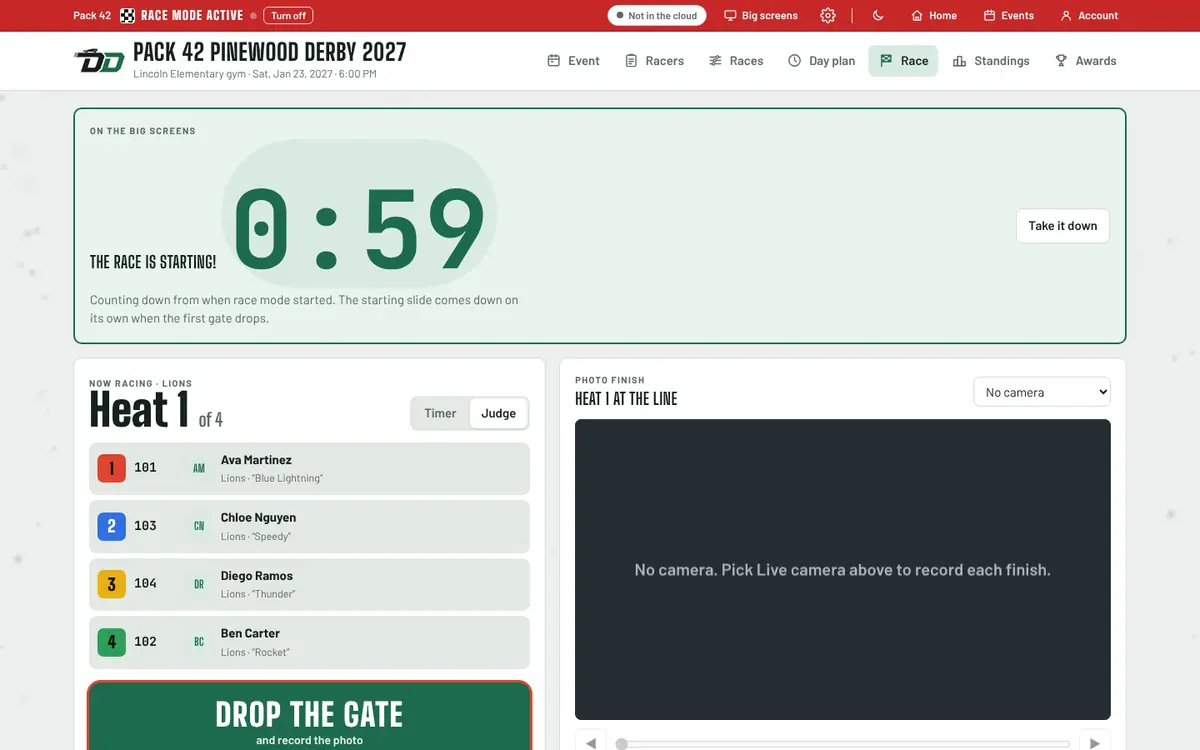
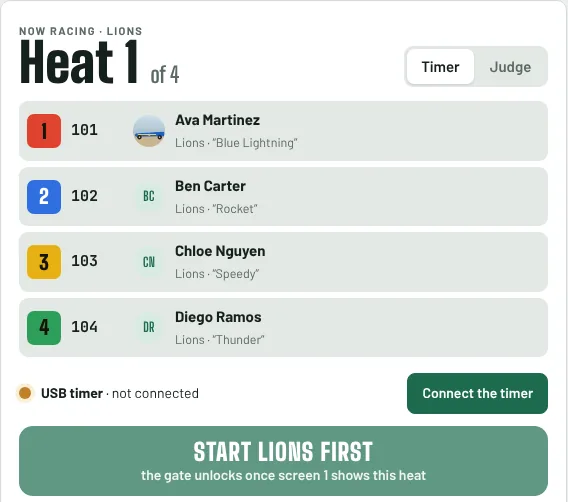
For each heat: read the four names out (they're on the screen), load the cars, and press Drop the gate as your starter lets them go. Then tap the racers in the order they crossed the line, winner first. Tapped the wrong one? Undo.
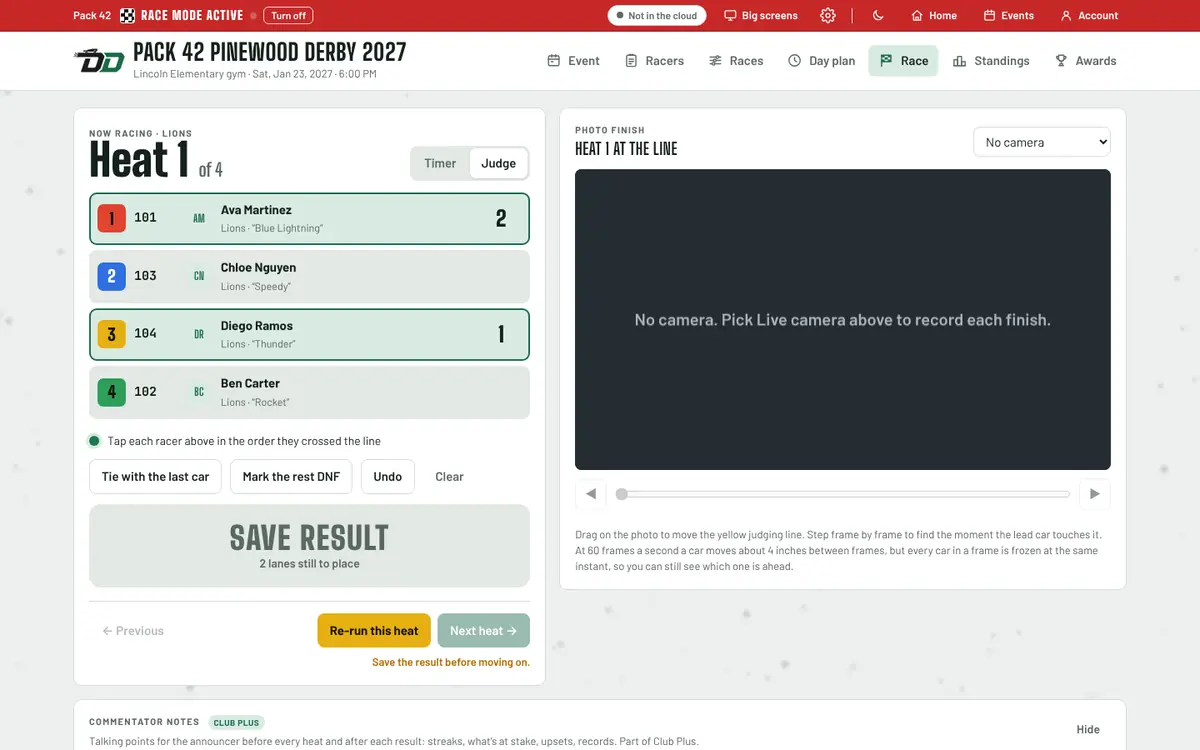
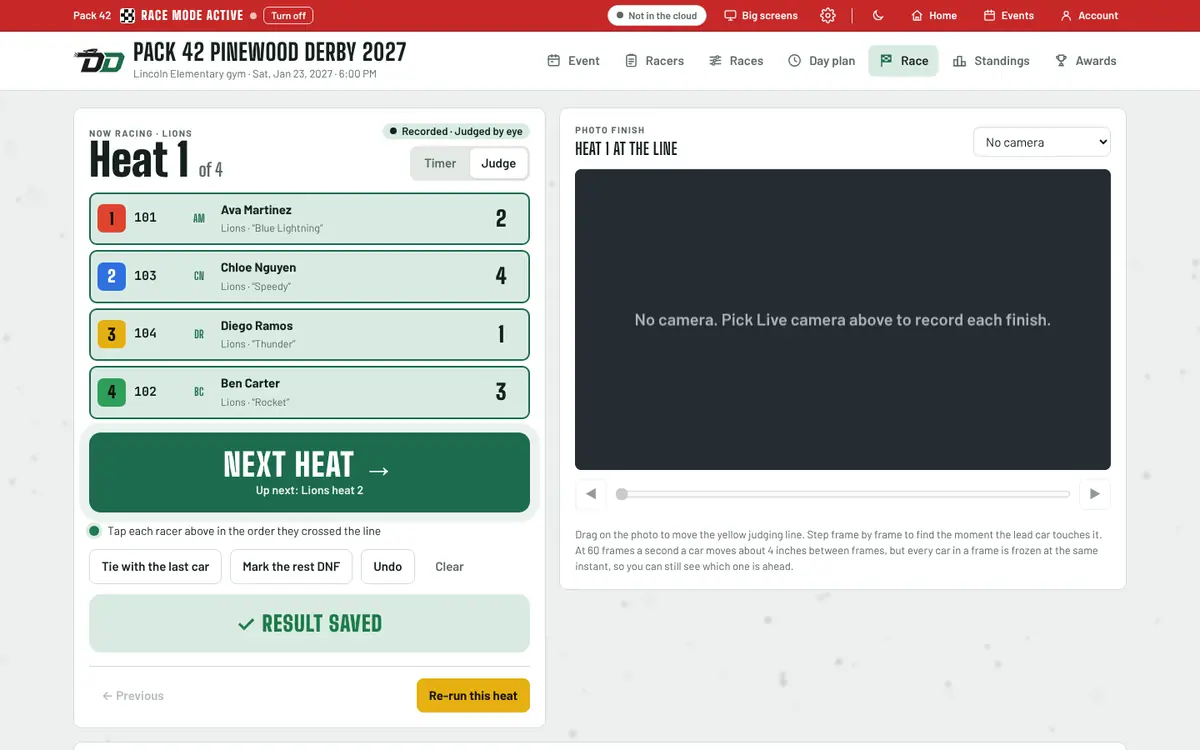
When every lane has a place, press Save result, and the big green button turns into Next heat. That's the rhythm for the rest of the night: names, gate, tap, save, next. By the third heat you won't have to think about it. If a wheel pops off or a car jumps the track, press Re-run this heat and go again.
8. Put it on the big screen
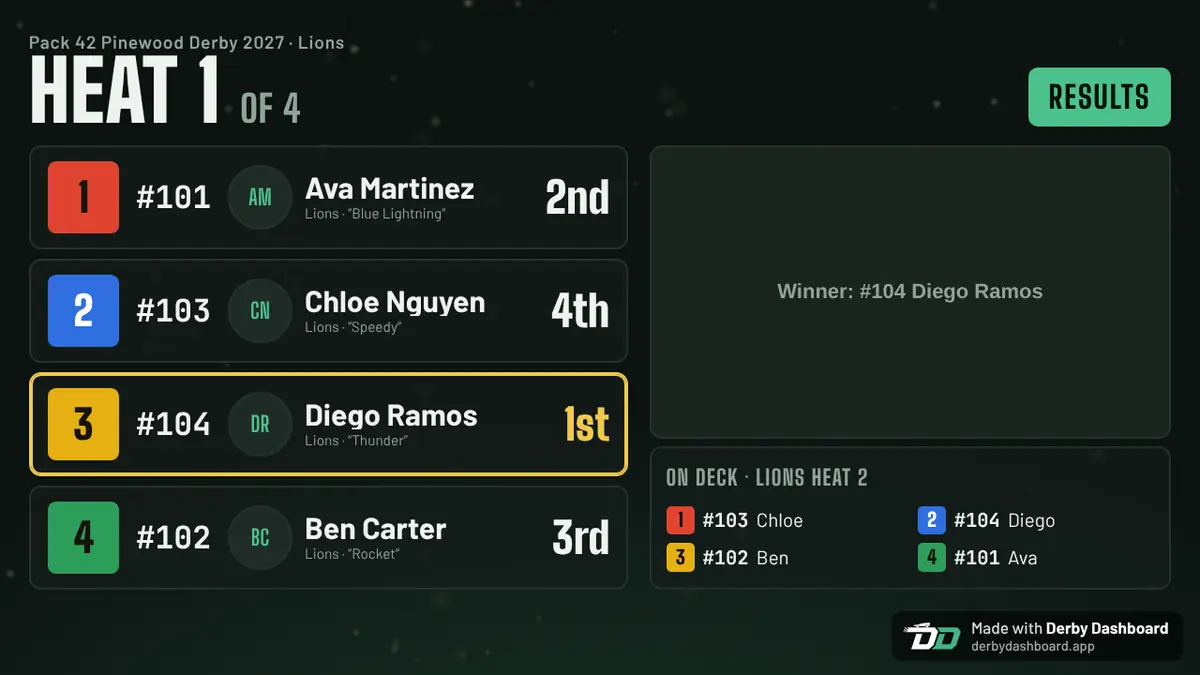
Plug the projector or TV into the laptop and set the laptop to Extend, not mirror (on Windows, press the Windows key and P). In the app, open Big screens, then screen 1. Drag that window onto the projector and make it full screen. From then on it follows along by itself while you keep racing on the laptop.
The room sees who's in each lane, how they finished and who's on deck, which cuts out most of the "when is my kid up?" questions. On the Free plan the screen has a small Derby Dashboard badge in the corner. The projector guide has more if the cables are giving you trouble.
9. Standings and awards
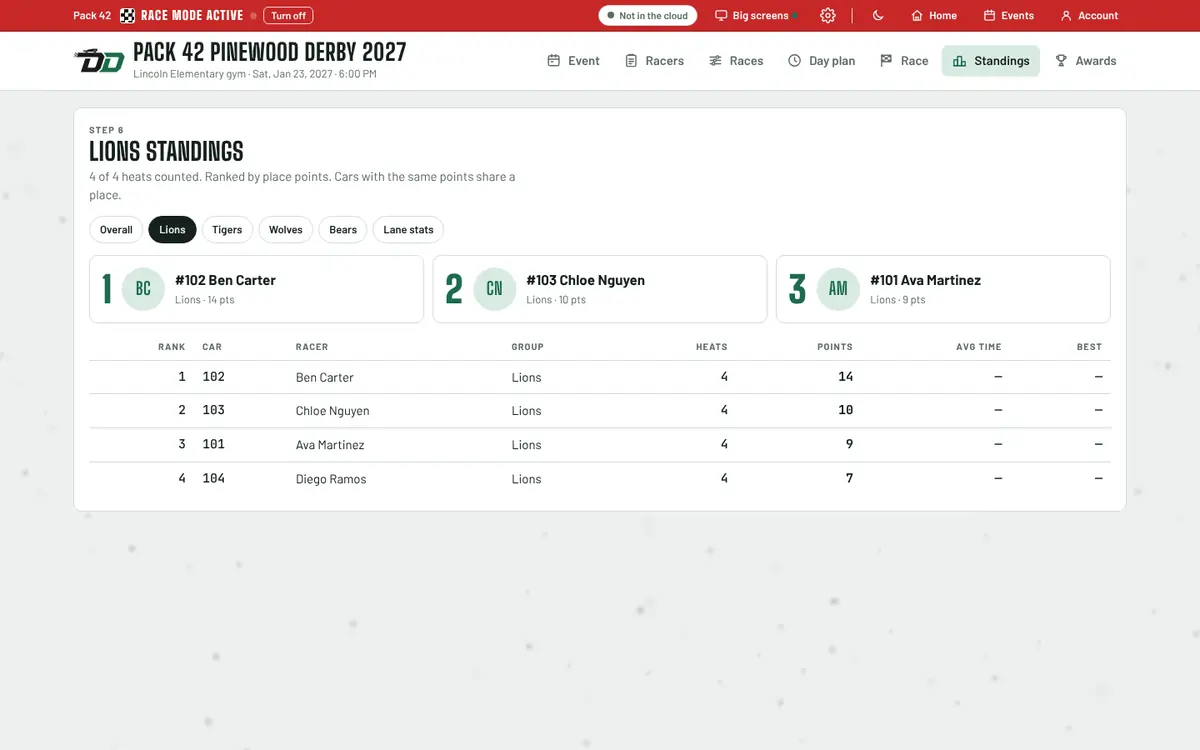
Standings keep themselves current after every heat, overall and for each den. Cars with the same points share a place. If two cars tie for a trophy spot, the app offers a quick run-off between just those two, so you're not flipping a coin in front of forty parents.
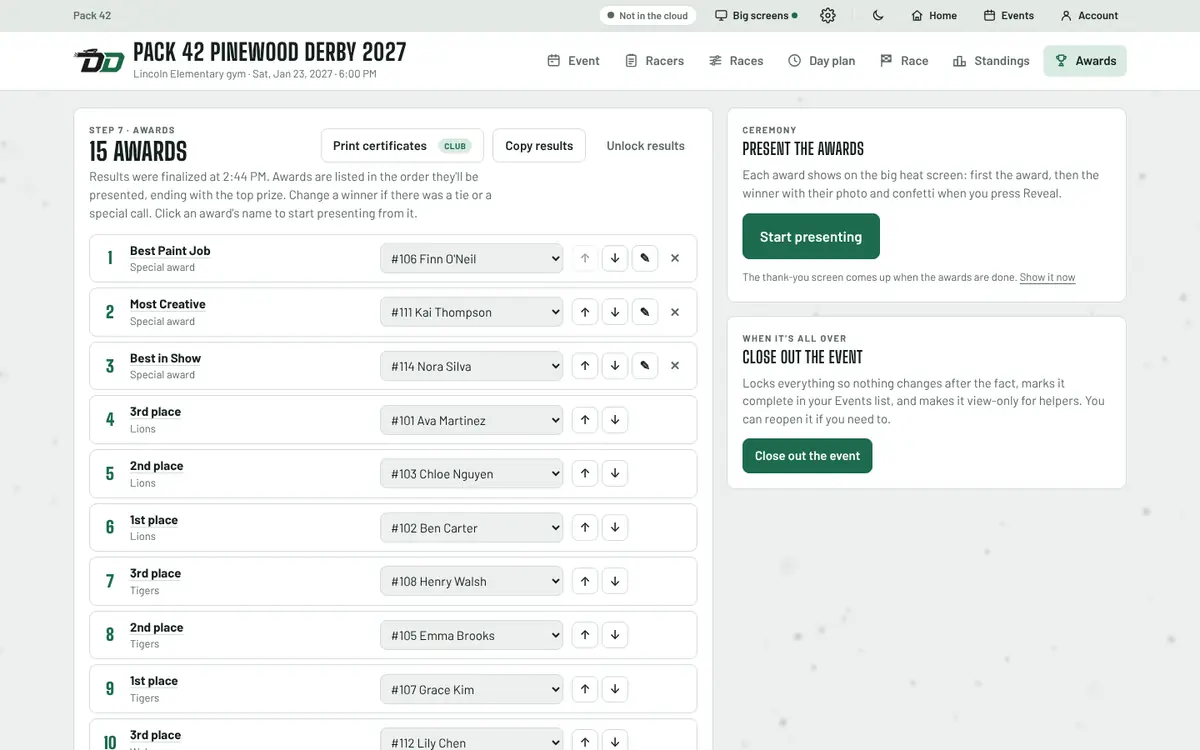
After the last heat, go to Awards and finalize the results. The app builds the awards list for you: top three in each den by default, plus any special awards like Best Paint Job, where you pick the winner. Press Start presenting and each award comes up on the big screen, then the winner (with their photo, if you added one) when you press Reveal. Printable certificates come with the Club plan.
Have a USB track timer? Try it early Beta
This part is a beta. We're actively working on support for USB track timers, and it's coming soon. If you already own one and want to try it early, the steps are below. Keep a person at the finish line anyway, and test it well before race night.
Most derby timers plug into a laptop with a USB cable. The app talks to them through Chrome or Edge on a Windows laptop, Mac or Chromebook. It reads the common formats, including FastTrack, Champ and SmartLine, Derby Magic, The Judge, NewBold, DerbyTimer, PDT and JIT Racemaster. So far only the JIT Racemaster has been tried on a real track; the others follow the makers' published formats, so tell us how yours does.
- Plug the timer into the laptop and turn it on. Open Settings (the gear at the top) and then USB track timer (test).
- Press Connect a timer. The browser asks which device to use. Choose the one that appeared when you plugged the timer in. Once the app knows your timer, it picks the speed and line ending it needs.
- Press Ask what it is. The app asks the way each timer's own software does, works out which one you have and remembers it next time. A few timers, such as NewBold, DerbyStick and the FastTrack P-series, never answer. For those, choose yours from the Timer list.
- Run a lane test. Open the start gate, then pass a hand or roll a car through each lane. Each lane should report in the log. If one never does, that sensor needs attention. You can switch that lane off under Lane sensors and race on the others.
- On the Race step, switch the heat from Judge to Timer. When the cars are staged, press Racers ready. That resets the timer, and the timer starts its own clock when the gate opens. When every lane gets a good reading, the result saves itself.
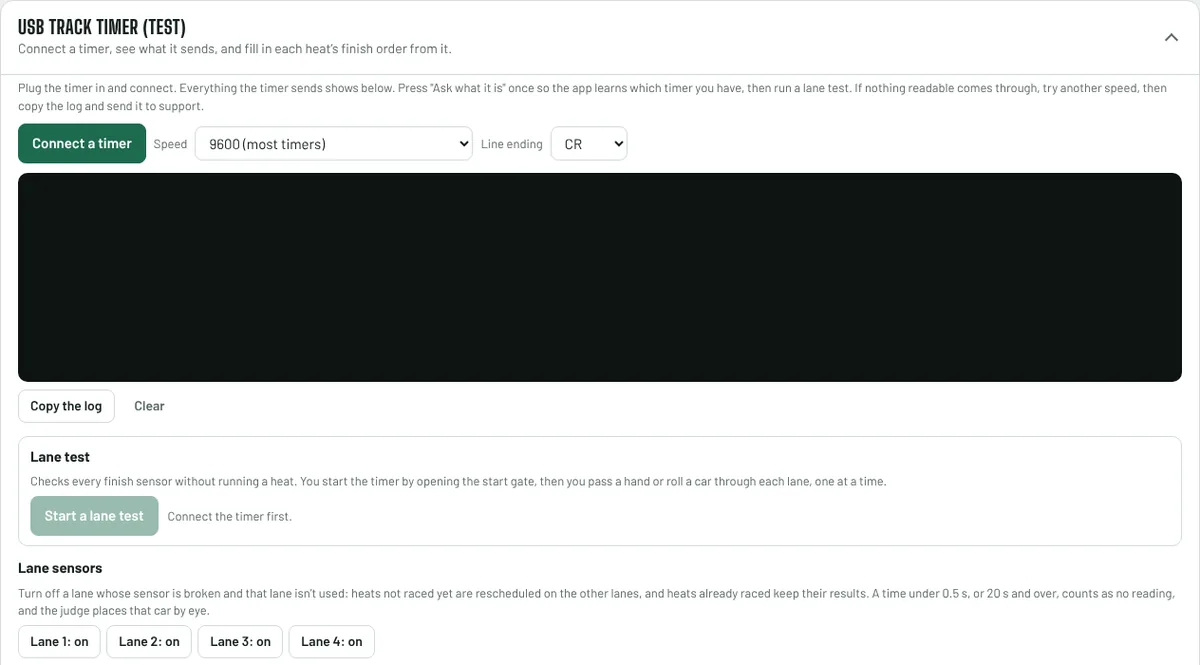
If a lane doesn't get a reading, the app asks your finish-line person where that car finished. If the timer stops answering altogether, press Stop and judge by eye and that heat is tapped in by hand like any other. If a saved result looks wrong, Correct this result by eye fixes it. If a JIT Racemaster stops answering between heats, the app reconnects to it by itself, and the Reconnect button does the same by hand. And if nothing readable comes through at all, try a different speed, then press Send the log to us and add a note about your timer. That log is exactly what we need to get your timer working, and it comes straight to us. (No internet at the track? Copy the log and email it to aaron@derbydashboard.app later.)
When something goes wrong
Something will. Every derby has a moment. None of them are a disaster.
Tapped the wrong order and already saved? Go back to that heat, press Clear, tap the right order and save again. Wi-Fi dropped? Keep going. Everything saves on the laptop as you go, and once the app has been opened in Chrome or Edge it works without internet. Worried about the laptop itself? Save a backup file from the Events page the night before and put it on a thumb drive. With the Club plan the event is also saved to the cloud, so another laptop can open it and pick up where you left off.
And if you're just not sure what a button does, that's what the sample race is for. Press Try a practice race on Home and run a heat or two before race night. Nothing you do there touches your real event. Ten minutes of practice on a Tuesday is worth a lot on a Saturday.
Questions
How long does it take to set up a race?
About twenty minutes if you have your list of racers handy: a few minutes for the account and event, a few to paste the roster, and the rest looking over the races and the day plan.
Do I need a track timer?
No. A judge at the finish line taps the order the cars crossed. We're actively working on support for USB track timers, and it's coming soon. If you already own one, this guide has a beta section for trying it early.
Can families sign up their racers ahead of time?
Yes, with Club Plus. Turn on online sign-up and share the link, code or a printed QR sign. Families send in their racer's name, group, car name and an optional photo, and you review each one before it joins the roster.
Can I add photos of the kids or their cars?
Yes, on every plan. Tap the plus on a racer's initials on the roster or at check-in, pick a photo and crop it. Photos show next to the racer in heats, in the group introductions on the big screen and at the awards.
Can I practice before race night?
Yes. Press Try a practice race on Home and run a few heats. It uses made-up racers and never touches your real event.
What if a family shows up late?
Check the car in and press Update the schedule. Only the race that car belongs to is rebuilt.
Does it cost anything?
The Free plan covers up to 20 racers on one laptop, with photos and the current-heat big screen. The Club plan adds unlimited racers, cloud save, helpers, camera replay and certificates. Club Plus adds online sign-up, a second big screen and live results on parents' phones.
Sign-ups are coming soon
We're getting Derby Dashboard ready for more packs and clubs. Join the waiting list and we'll email you when it's your turn.
Ready to set up your race?
Create an account and follow along with this page. Free covers up to 20 racers, and you can move up to a paid plan from the app.